Automating a Mobile App with an Android Emulator
I used Python, an Android emulator, and OCR to automate a repetitive in-app card-spinning workflow.

Automating a mobile app for the first time taught me that reliable timing matters as much as reliable code.
The repetitive task
The app had a feature called “Spin.” It lets a player use existing cards to try for a new or upgraded card.
With several accounts, each spin required the same sequence: log in, open the right screen, start the spin, record the result, and log out. Repeating that process by hand quickly became tedious.
The script had to handle email verification, app navigation, eligibility checks, result capture, and multiple accounts. Each step was simple. Making them work together was the real challenge.
The setup
I used Python with an Android Emulator. The emulator provided a controllable device, while Android Debug Bridge (ADB) let the script send taps, swipes, and screenshots.
The workflow had four main parts.
1. Navigate the app
Navigation was the foundation. I mapped the screens and coordinates, then used Python and ADB to reproduce the taps and swipes.
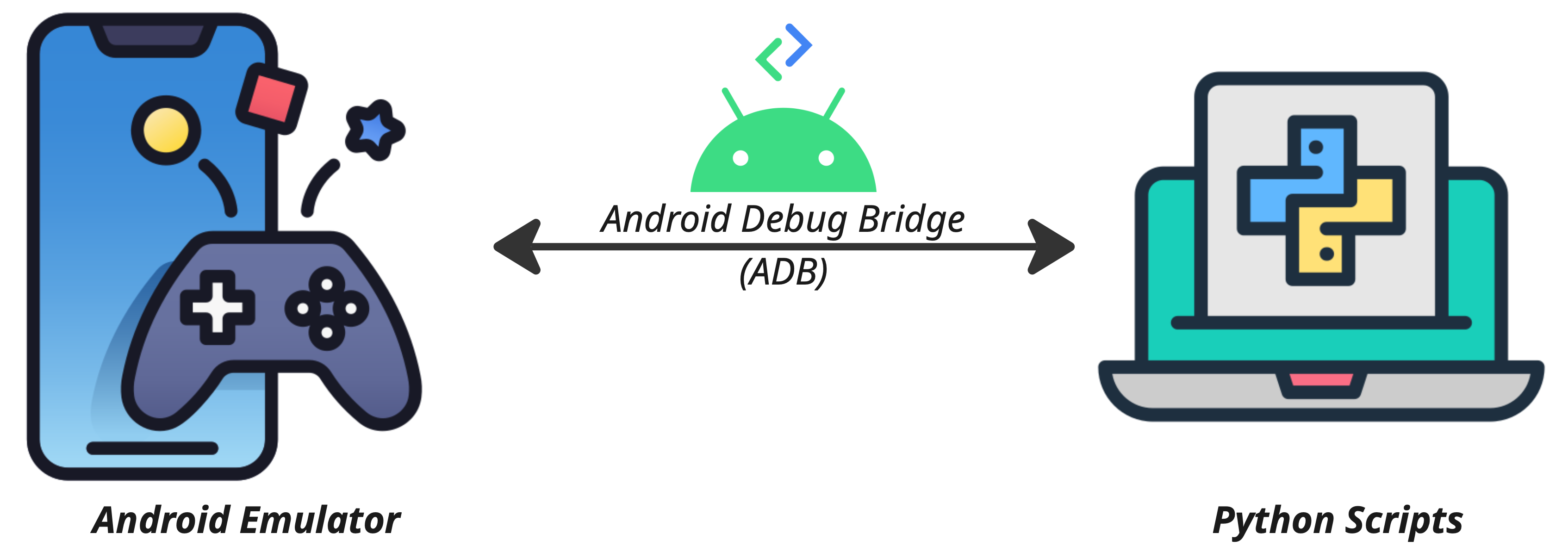
Coordinate-based automation is sensitive to layout changes. A small UI update can move a button, so this approach is useful for a controlled experiment but needs maintenance.
2. Read email verification codes
The login flow required a code sent by email. I could have used IMAP or a mailbox API, but I already needed screenshots for the app results.
I captured the email screen in the emulator and used Optical Character Recognition (OCR) to extract the code. It was a practical rather than elegant solution, but it kept the prototype inside one workflow.
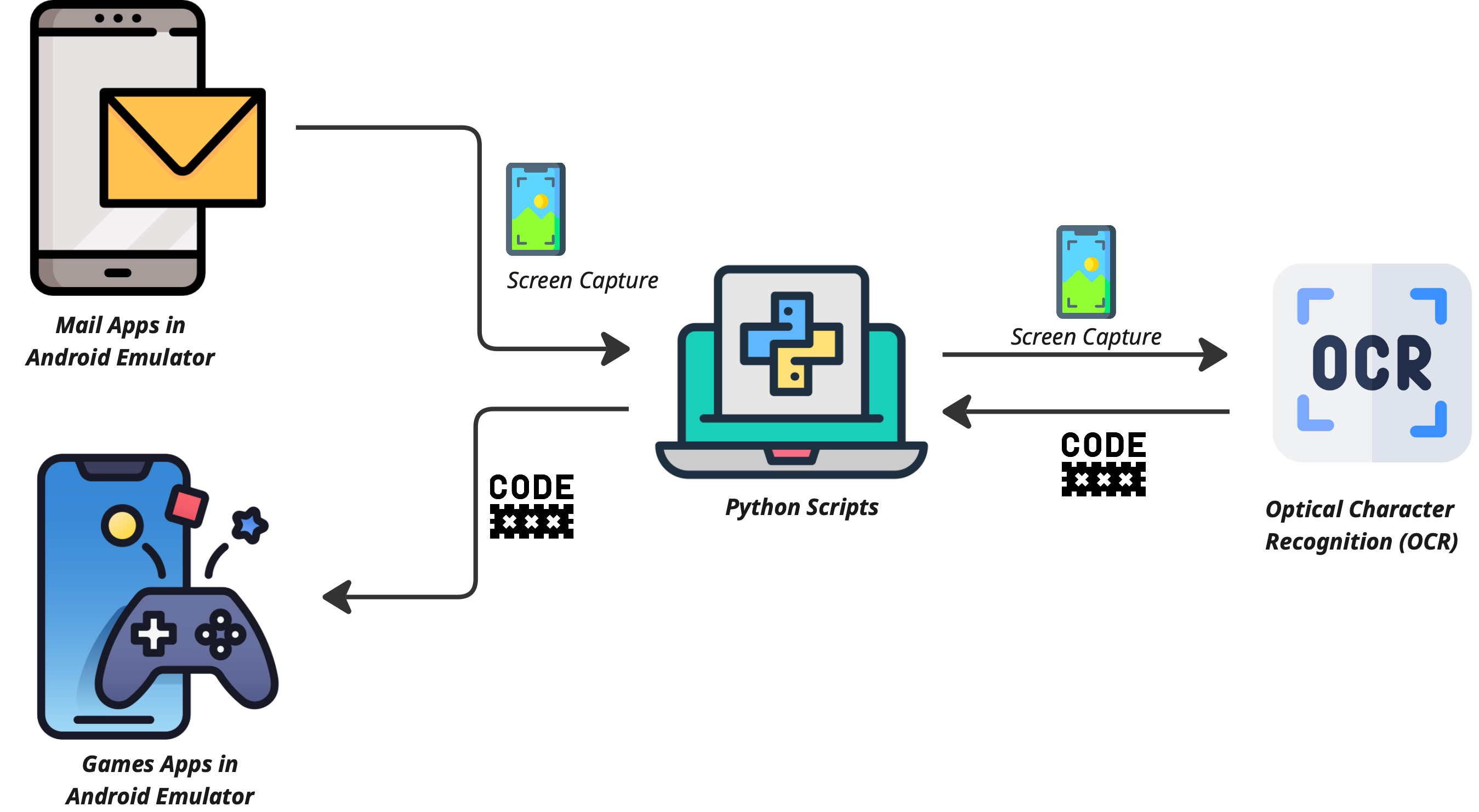
3. Capture the results
After each spin, ADB saved a screenshot to my computer. I also ran OCR over the result so I could review the outcomes as text instead of opening every image.
The important operational detail was file organization. Automation can create a lot of output quickly, so naming and grouping the screenshots matters.
4. Wait for the server
The app did not always respond at the same speed. Animations, loading screens, and network delays could make the script tap too early.
Adding small time.sleep() delays made the first version more stable. It is a simple fix, but it also shows the limitation of fixed waits: if the server becomes slower, the delay may still be too short.
What I learned
The first version does the repetitive work, but it is not a finished automation framework. The next improvement is replacing fixed delays with checks that wait for a known screen or UI state.
It was a useful first emulator project. I also used an LLM to help write parts of the script, which made the experiment feel like a small piece of vibe coding that actually paid off.