Using Apps Script and Gemini to Triage Gmail
I used Google Apps Script and Gemini to classify incoming Gmail messages and make a crowded inbox easier to scan.

My inbox was full of newsletters, receipts, and vague subject lines. I wanted to know what deserved attention before opening every message.
The email problem
Subscriptions, work updates, and personal messages had turned my inbox into a long list of unknowns. The volume was inconvenient, but the bigger problem was uncertainty.
Many subject lines did not tell me whether a message was important or promotional. I was spending time opening messages that did not need a reply and skimming messages that deserved more attention.
The approach
Because I already used Gmail, Google Apps Script was a practical place to build the automation. Gemini would classify each message using its sender, subject, and a short content sample.
The script applies Gmail labels such as Financial, Newsletter, and Promotional Spam. They make a crowded inbox easier to scan.
Designing the classifier
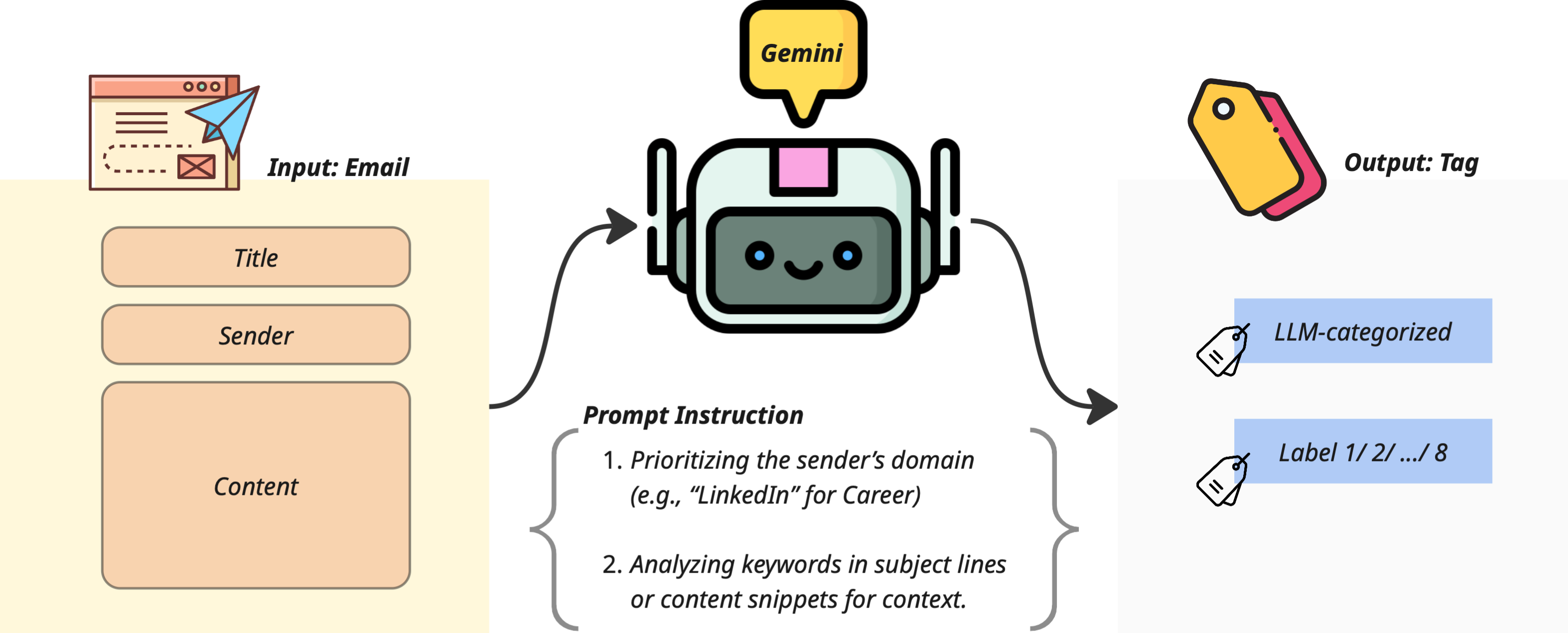
The prompt gives Gemini a fixed set of categories and rules for choosing among them. Sender domains provide a useful signal, while subject lines and content help resolve ambiguous cases.
For example, an email from a known newsletter source may become Newsletter. A message containing an invoice or transaction reference may become Financial.
The current categories are Career, Entertainment, Financial, Newsletter, Purchase/Receipt, System, Travels, and Promotional Spam. I used an LLM to help refine the wording as I tested the prompt.
How the script works
The script runs on a schedule and processes unread messages within a selected date range.
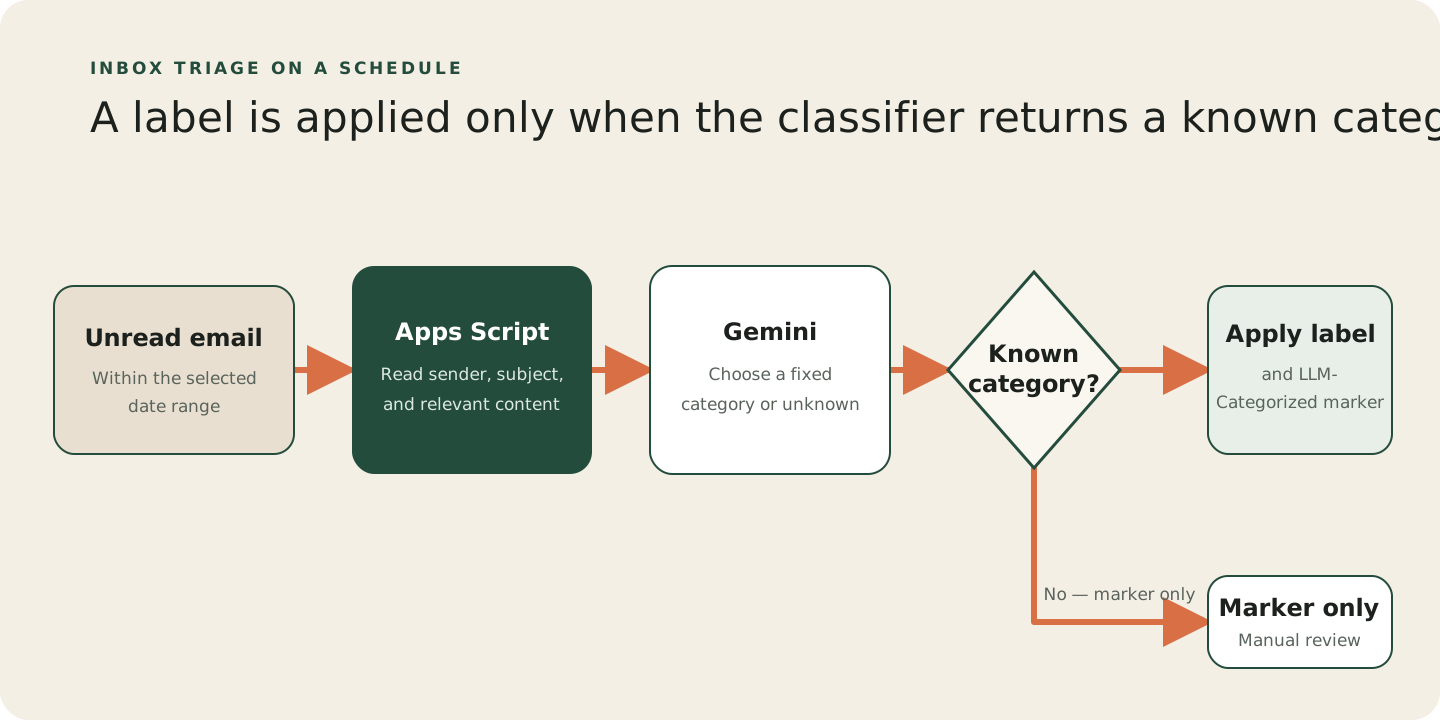
The script processes messages in batches and pauses between requests. It also watches the execution time because Google Apps Script has a limit on how long one run can continue.
What worked and what did not
The system handles many messages in one run and cuts down on manual sorting. Ambiguous emails are sometimes misclassified, so I still review the labels.
I still read important messages myself. The automation is a triage layer that helps me decide where to look first.
For a personal inbox, Apps Script plus an LLM was enough to produce a useful result without building a separate service.